Solid-State Drives vs Hard Drives: Which Storage Is Best for You
Wondering between SSDs and HDDs? Compare speed, capacity, durability, cost, and best uses to choose the right storage—or a smart mix—today.
Speed and Day-to-Day Performance
When you're choosing between a Solid-State Drive (SSD) and a Hard Disk Drive (HDD), the first difference you'll notice is speed. SSDs deliver dramatically lower latency and higher IOPS, which translates into faster boot sequences, near-instant app launches, and snappy file searches. Browsing large photo libraries, opening complex spreadsheets, compiling code, or jumping between creative tools all feel smoother on an SSD because it excels at random access—handling many small reads and writes quickly. HDDs can be adequate for sequential throughput, like streaming big media files, but their mechanical design slows them down with seek times whenever tasks aren't perfectly linear. For gamers, SSDs cut loading screens and texture streaming delays, while professionals benefit from quicker scratch disk operations and more responsive timelines. Even routine updates, background indexing, and security scans complete faster on an SSD. If your priority is everyday responsiveness, an SSD offers a transformative upgrade that you'll sense from the first click.
Durability, Reliability, and Data Integrity
SSDs have no moving parts, so they're naturally resistant to shocks and vibrations that can challenge HDD mechanisms. This makes SSDs a solid choice for laptops, travel, and small form-factor systems that move around a lot. Modern SSD controllers use wear leveling, error correction, and TRIM to maintain performance and extend lifespan, distributing writes across cells to avoid premature wear. While SSDs do have finite write endurance, well-sized models paired with healthy maintenance practices comfortably serve typical consumer workloads for many years. HDDs, with spinning platters and read/write heads, can suffer from mechanical failure, head crashes, or bad sectors over time, especially in environments with frequent movement. On the flip side, some forms of data recovery may be more feasible with HDDs after certain failures, whereas SSD data can be harder to retrieve if the controller fails. Regardless of drive type, enable S.M.A.R.T. monitoring, keep firmware current, and maintain a disciplined backup routine to protect your files.
Capacity and Price-Per-Gigabyte
If you need massive storage on a strict budget, HDDs still win on price-per-gigabyte, offering multiple terabytes for a comparatively low cost. This makes them ideal for large media libraries, extensive game collections, and archives that don't demand frequent high-speed access. SSDs, while more expensive per gigabyte, deliver performance gains that can justify the premium when productivity or responsiveness is critical. A pragmatic approach is a hybrid setup: a fast SSD for your operating system, apps, and active projects, paired with a roomy HDD for cold storage and backups. Consider your capacity planning carefully—estimate growth for photos, 4K video, virtual machines, and project files, then add a buffer to avoid hitting limits during busy periods. As SSD capacities continue to rise, the cost gap narrows over time, but value still depends on what you store and how you work. If your workflow revolves around speed-sensitive tasks, prioritize SSD space; if bulk storage dominates, favor HDD capacity.
Noise, Heat, and Power Consumption
For quiet, energy-efficient builds, SSDs are excellent: they're silent, produce minimal heat, and draw modest power. That means cooler laptops, quieter desktops, and potentially longer battery life. They also reduce the need for aggressive cooling, which can cut system noise even further. HDDs generate audible spindle and seek sounds, plus slight vibration that can resonate in some cases or enclosures. Higher-performance HDDs can run warmer, requiring thoughtful airflow to maintain reliability. While modern drives are more efficient than earlier generations, the contrast with SSDs remains clear in compact or fanless systems where every watt and decibel matters. Under sustained heavy writes, certain SSDs may throttle to manage thermals, so ensure your case has reasonable airflow and avoid blocking M.2 drive locations. If you value a low-noise workspace—recording audio, streaming, or focusing in a quiet office—SSDs provide a tangible comfort advantage, making your system feel refined as well as fast.
Form Factor, Interfaces, and Compatibility
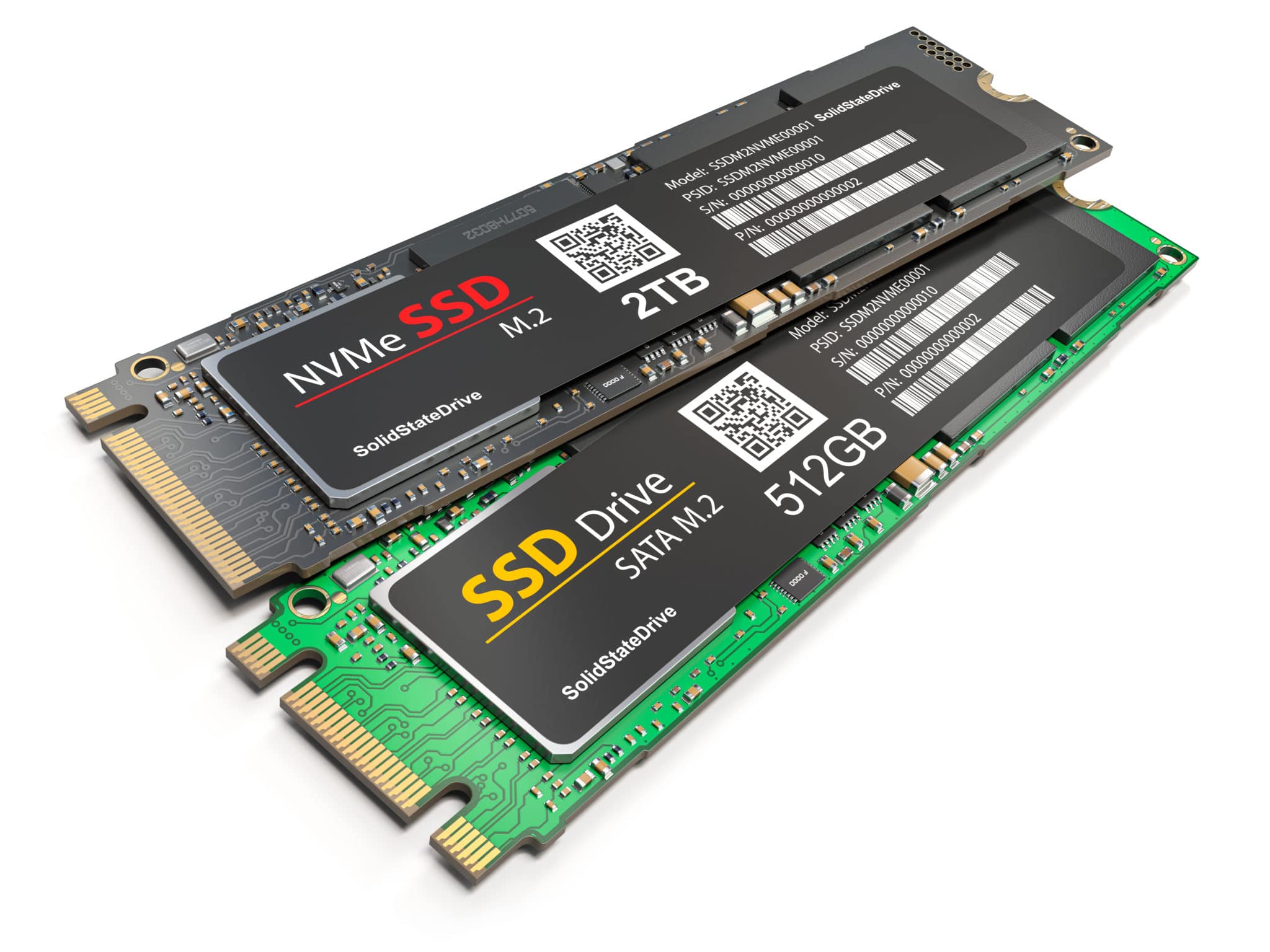
Before upgrading, confirm physical and interface compatibility. SSDs come in multiple form factors: 2.5-inch SATA models fit many laptops and desktops, while M.2 drives can speak SATA or NVMe protocols—the latter leveraging PCIe lanes for much higher throughput and lower latency. Some desktops also support PCIe add-in SSDs for peak performance. HDDs commonly use 3.5-inch bays in desktops and 2.5-inch bays in laptops or compact systems. Check your motherboard for available M.2 slots, heat spreaders, and lane sharing with other components; consult your device manual for drive height limits, caddies, and screws. If cloning an existing system, use reliable cloning software, align partitions correctly, and enable features like AHCI or NVMe drivers as needed. For external use, consider enclosures that match your drive's interface and deliver adequate cooling. A little planning ensures you unlock the right performance tier without running into mounting or BIOS/UEFI surprises.
Best Use Cases and Buyer Profiles
Match the drive to your workflow. If you want instant responsiveness for everyday tasks, gaming, and creative apps, choose an SSD as your primary drive; it accelerates launches, level loads, previews, and scratch operations. Content creators working with large raw photos, layered illustrations, or high-bitrate video benefit from SSDs for active projects, often pairing them with HDDs for long-term archives. Students and remote workers who rely on quick boot-ups and smooth multitasking will feel the difference immediately. For media hoarders—movies, music, backups—HDDs deliver cost-effective capacity that beats any cloud bill over time. Home servers and NAS setups often combine the two: SSDs for caching and metadata, HDDs for bulk storage. Travelers appreciate portable SSDs for durability and speed, while budget desktops can start with a modest SSD for the OS and a large HDD for everything else. Think about where speed saves you time and where capacity saves you money.
Decision Checklist and Practical Recommendations
If you prioritize responsiveness, buy an SSD for your system drive; it elevates the entire experience. If you manage large libraries or backups, add an HDD for affordable, high-capacity storage. Many people do both: SSD for the OS and active work, HDD for archives and media. Ensure good backups—keep multiple copies across different devices or locations, and test restores periodically. Plan for headroom so your SSD maintains performance as it fills, and monitor drive health with S.M.A.R.T. tools. When performance is mission-critical, consider NVMe SSDs; for broad compatibility, SATA SSDs remain a safe bet. In shared or always-on environments, pair HDD arrays with RAID and, if available, SSD caching for snappier access to hot data. Finally, optimize after install: update firmware, enable TRIM, and tidy startup apps. By aligning performance needs, capacity goals, and budget, you'll build a storage setup that feels fast today and scales smoothly tomorrow.